Wireless HMD's#
Recommended Network Configuration#
For optimal wireless PCVR streaming performance, use a dedicated access point on a separate device specifically for streaming. A WiFi 6E or 7 AP is preferred for the best experience, there are recommended devices below.
Setup Overview#
This diagram shows the recommended network topology.
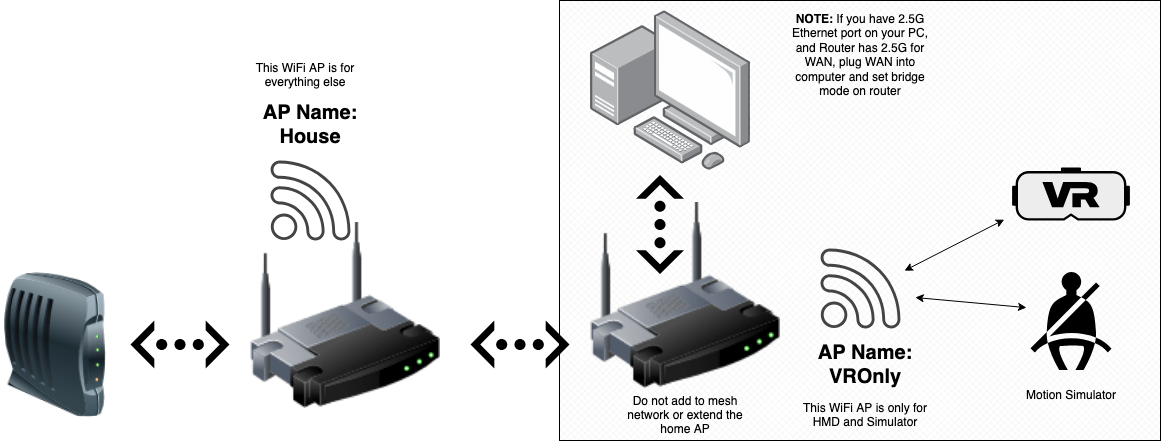
Key Requirements#
- Dedicated AP: Use a standalone access point or router dedicated solely to VR streaming
- Bridge Mode: Configure the AP in bridge mode
- Ethernet Connection: Connect the AP to your primary network via its WAN port
- PC Connection: Use a 2.5Gb or faster ethernet port between your PC and dedicated AP
Network Segmentation#
On the dedicated VR AP disable all Wireless bands apart from 5/6GHz, this should have a dedicated AP name, and you can also select the channel to not overlap with any channels used on your existing AP's
- Bridge Mode: The dedicated AP should be set to bridge mode
- 5GHz/6GHz: Wireless headset only (the only device on this network, you can only add Yaw3 to Wifi 6E network if you perform My Yaw 3 Wifi 6E mod)
- Wired: to PC via ethernet using fastest port on AP (which may be the wan port, if so plug your existing network into one of the ethernet ports on the device
Equipment Recommendations#
- Ethernet Cable: Cat 5e or better (1000mbps+)
- Ethernet Port: 1000mbps or higher on PC
- Router/AP: WiFi 6E/7 capable, supporting at least 1000mbps throughput
- Connection: Hardwired PC connection is mandatory for best performance
Important Notes#
- Internet speed is not a factor—focus on local network data throughput between your PC and the Wireless HMD
- Each component in the chain represents a potential bottleneck
- Higher data throughput capability directly correlates with better streaming quality
- Dedicated WiFi band prevents interference from other devices
Tested and recommended devices#
BE/Wifi 7#
- TP-Link BE9300/BE550 19GBs 10G Port (~$499 US)
- TP-Link BE9300/BE550 9.3GBs 10G Port (~$299 US)
- TP-Link BE9300/BE550 9.3GBs 2.5G Port (~$249 US)
AXE/Wifi 6E#
- TP-Link Archer AXE75/AXE5400 10G Port (~$399 US)
- TP-Link Archer AXE75/AXE5400 Gaming 2.5G Port (~$179 US)
- Davolink 'Kevin' Minion 6E 2.5G Port (~$129 US)
- ARRIS Surfboard W6U 2.5G Port (~$35 US)